
Specs are compiled from manufacturer listings and verified buyer reviews and can change over time — please confirm the key details on the product page before buying.
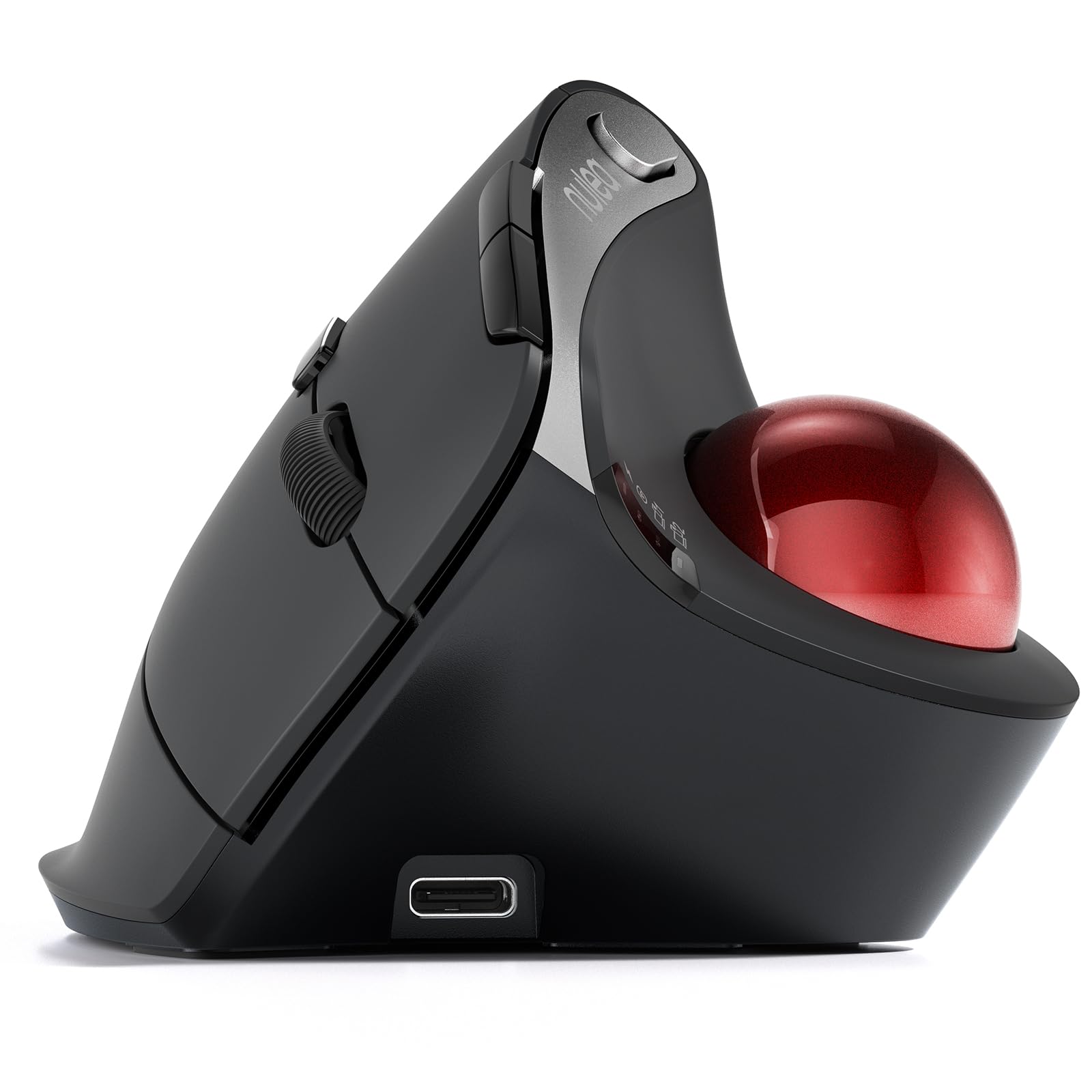
If your thumb aches after a long day at the desk, the fix is almost never a softer mouse pad — it’s a mouse shape that stops your thumb doing the gripping. The nine picks below are all built around that single idea: vertical shells, thumb-rests, and trackballs that let the hand sit in a handshake position instead of a claw. The Nulea M506 is the one most people should start with — a 54° vertical trackball that lets your thumb roll the cursor instead of dragging it across the desk.
This guide is built by comparing the manufacturers’ published specifications and the patterns across verified customer reviews, so you get each pick’s real strengths and trade-offs instead of marketing spin.
Start by deciding whether your thumb wants to push a shell or roll a ball, because that single choice narrows the whole field. That one decision is the whole reason this guide on ergonomic mice for thumb pain exists.
Top Picks


How To Choose The Best Ergonomic Mice for Thumb Pain
Thumb pain at a desk almost always comes from one repetitive motion: clamping. A flat mouse forces your thumb to squeeze the side of the shell all day to hold it steady, and that grip never fully releases. An ergonomic mouse for thumb pain works by changing that job. A vertical mouse rolls your hand onto its side so your thumb can rest on a shelf instead of clamping, and a trackball hands the cursor work to the thumb as a rolling motion instead of a push. Once you know which of those two feels natural to you, the rest of the decision is about angle, size, and which buttons sit under your thumb.
Tilt angle and handshake grip
A fixed shell holds your hand at one precise angle all day — something like the Logitech Lift’s 57 degrees, or the Razer Pro Click V2’s handshake shape with base support. A flat mouse sits at roughly zero. The higher the angle, the more your forearm rotates toward a neutral position, which is where the relief usually shows up first. If your thumb pain is paired with forearm or shoulder tightness, an adjustable hinge is worth the extra research. The Contour Unimouse lets you set its tilt anywhere from 35° to 70° and far enough to shift load mid-day, which fixed-angle mice simply cannot do.
Trackball versus vertical shell
These solve thumb pain in opposite ways. A thumb trackball like the Nulea M506 uses your thumb to roll a ball, so your wrist and arm stay planted — no dragging across the desk. A vertical shell like the Evoluent VM4S keeps the thumb holding a sculpted grip but turns the whole hand onto its side. Trackballs tend to suit people with wrist trouble, while vertical shells suit people who want a familiar mouse feel. Most buyers start with a shell and switch to a ball if wrist dragging is the bigger issue.
Hand size and shell width
This is the single most common reason an ergonomic mouse gets returned — the shape is right but the size is wrong. A small mouse in a big hand makes the thumb reach and stretch; a big mouse in a small hand makes the thumb float with nothing to rest on. The Evoluent VM4S comes in a size specifically built for smaller hands, while the Razer Pro Click V2 and Logitech MX Ergo S sit in medium-to-large territory. Measure from your wrist crease to the tip of your middle finger before you buy, and match it to the listed size range at that product.
Thumb rest, thumb wheel, and wireless battery
Where the controls sit matters as much as the shell. A thumb rest lifts the base of the thumb and takes pressure off the joint — the DELUX Seeker goes further with a magnetic detachable wrist pad and an integrated thumb rest. A thumb wheel for horizontal scrolling can be a real win, though the DELUX’s thumb wheel does not work on macOS. And on battery, the numbers swing widely: the Logitech Lift runs on two-year battery life, the Contour Unimouse lasts up to 12 weeks on a charge, and the Razer Pro Click V2 stretches to 6 months. Trust the spec that matches your desk habits, not the biggest number.
Side-by-Side Comparison
| Model | Best For | Form Factor | DPI Settings | Buttons | Amazon |
|---|---|---|---|---|---|
| Nulea M506★ Best Overall | First-time vertical switchers | 54° vertical trackball | 4 levels (400/800/1200/1600) | 6 | Amazon |
| Perixx PERIMICE-713RXBest Value | Wireless-charging desk setups | Vertical shell | 2 levels (1000/1600) | 6 | Amazon |
| Ergodriven OmMost Customizable | On-mouse button customization | Vertical shell with OLED | 4 levels (1200/1600/2000/2400) | 9 | Amazon |
| Logitech Lift | Small-to-medium right hands | 57° vertical shell | — | 4 | Amazon |
| DELUX Seeker M618XSD | Wrist-rest lovers | Vertical shell with wrist rest | 5 levels (800/1200/1600/2400/4000) | 6 | Amazon |
| Evoluent VM4S | Small-hand desk workers | Vertical shell, small | 4 speeds | 6 | Amazon |
| Razer Pro Click V2 | Multi-device power users | Vertical shell with base support | — | 6 | Amazon |
| Contour Unimouse | Adjustable-fit shoppers | Adjustable 35°–70° vertical | Adjustable | 6 | Amazon |
| Logitech MX Ergo S | Trackball veterans | 20-degree tilt trackball | Precision-mode button | 8 | Amazon |
Detailed Reviews
1. Nulea M506 Wireless Trackball Mouse
Our pick — 4.5+★ from 200+ verified ratings; the strongest balance of quality and price.
A 54° shell where your thumb rolls the cursor instead of dragging the mouse.
The 54° vertical tilt does one specific job: it sits your hand in a handshake position so your thumb stops clamping the side of the shell to hold it steady. Instead, the thumb rests on a textured palm surface and does its work by rolling the trackball. That means your arm and wrist stay planted — no more dragging a mouse across the desk all day, which is exactly the motion that aggravates a thumb joint over a long week. At 151.5 g it has enough heft to feel planted without turning into a hand workout.
What wins people over here is the ergonomics — 54 degrees of roll and a shape that keeps the wrist and forearm relaxed. The responsiveness comes right behind it, with the ball tracked precisely enough to move between precision and speed using the four DPI levels (400/800/1200/1600). One buyer summed up the whole appeal by reporting that it “put noticeably less pressure on my wrist,” while admitting they were slightly less precise than with a regular trackball but expected to adapt.
The honest trade-off is the ball itself. A few owners find that at low speeds the ball starts with a bit of friction and can overshoot on fine pixel-by-pixel moves — a real annoyance if you do pixel-precise design work. The good news is the ball pops out without tools for cleaning, which keeps that friction from building up over months. Also worth knowing before you commit: there’s a genuine learning curve for that angled, non-flat hand position, and buyers consistently say it smooths out with a little use.
Where it earns its keep
- 54° vertical tilt puts the hand in a handshake position, so the thumb rests instead of grips
- Thumb-controlled ball cuts wrist and arm movement to nearly zero
- 4 DPI levels (400/800/1200/1600) switch between precision and speed in one button press
- Up to 21 days of use per charge, plus a removable ball that cleans without tools
Where it asks something of you
- The angled hand position needs a short adjustment period before it feels normal
- Initial ball friction can cause overshoot on very fine mouse moves
- Small side lip gives the hand less to rest on than a full shell
Reach for this if: your pain flares when you drag a mouse around and you want your arm to stay in one spot all day.
Look elsewhere if: your hand is large and you want a wide shelf under the palm — this shell is a compact 151.5 g and the side lip is shallow.
2. Perixx PERIMICE-713RX Wireless Rechargeable Vertical Mouse
The one that ships with a charging pad your phone can borrow.
This is the pick for a tidy desk. The upright shell lifts your wrist into a neutral position for all-day work, and you get two ways to charge: a USB-C cable for wired charging, or the included wireless charging pad that doubles as a phone charger. The pad puts out 7.5W for iPhone 13–17 models, 10W for S20–S25 series, and 5W for other wireless-charging devices, so your phone or earbuds can sit on it while the mouse is in use. The 2.4 GHz wireless link is plug-and-play with up to 30 ft (≈10 m) of range, and the left and right buttons are silent — though the scroll wheel and back/forward buttons do still click audibly.
The hand orientation is right-handed, the shell is a soft-touch rubber coat, and the adjustable DPI sits at 1000 or 1600. That’s a narrower precision range than trackballs on this list offer, and back/forward buttons do not work on macOS at all. There’s also a real learning period: Perixx itself notes first-time users may take 1–2 weeks to adapt to the upright shape.
This is the most-reviewed mouse on this list, so the feedback is worth reading closely — and it’s mixed on reliability. A few units reportedly stop responding mid-session after months of use, and one owner described trouble pairing the mouse at all. Perixx backs it with a 12-month limited warranty through their site, and for most people the shell works exactly as intended. But if you want the longest odds of a trouble-free unit, the Ergodriven Om has a stronger reliability record.
The practical read: budget-tier vertical shell, silent main clicks, and a charging pad that earns its space on a shared desk — plus up to 30 ft of wireless range for couch or conference-room use.
Suits you when: you want an upright shell plus a charger that doubles as a phone pad, and you’re fine with 1000/1600 DPI and no macOS side buttons.
Step up if: you want a stronger reliability record or more DPI headroom — the Ergodriven Om covers both, though it costs more.
3. Ergodriven Om Vertical Ergonomic Mouse
Nine buttons you can reassign on the mouse itself — no software, no downloads.
If your thumb pain comes from pinching two buttons all day, this is the pick that takes the load off. You get 9 buttons in total — more than any other mouse on this list — and you reassign them using the onboard OLED screen, in around ten seconds and without installing any software. That’s a meaningful difference from the Perixx and DELUX shells, whose button remapping needs a Windows driver installed first. The screen also shows battery and DPI, so you always know where you stand. Four DPI levels (1200/1600/2000/2400) let you dial in sensitivity for your workspace, though changing them takes a long press — one of the design quirks that shows up in buyer feedback.
The ergonomics are the headline: 154 verified mentions of the shape, the single biggest praise point on this list, followed by 100 on button placement. The high-capacity Li-ion battery is rated at five weeks of average life, and it ships with at least a 50% charge so you can use it from the start. The 2.4GHz dongle and Bluetooth options both work with Windows, macOS, and Linux, and the on-board screen doubles as a copy/paste shortcut hub — one-click copy, paste, undo and mute, assigned directly on the device.
The recurring gripe is the sensor’s liftoff distance, which is high enough that the cursor tracker cheerfully follows your hand when you lift the mouse to reposition it. There’s also a limit on button assignments: you’re working from firmware presets, so you can’t map a button to an arbitrary keyboard key. Both are real constraints, but they’re the kind of thing you work around rather than fight, and the two-year manufacturer’s warranty takes the edge off. It’s the best all-round button-customization vertical shell here for someone who wants to keep their setup software-free.
One detail that matters: it carries a two-year manufacturer’s warranty and a rechargeable battery rated for 5 weeks of average use, so it’s designed for long-term desk duty rather than a quick swap.
Pick this when: you map a lot of shortcuts and want to do it straight on the mouse, with no drivers to install and a five-week battery between charges.
Think twice if: you lift your mouse often during fine work — the high liftoff distance can send the pointer drifting until you adjust.
4. Logitech Lift Vertical Ergonomic Mouse (Renewed)

A 57° shell at 125 g, tailored for smaller right hands that need a snug thumb rest.
That 57-degree vertical angle is doing more work than it looks like. It rolls your hand onto its side so your forearm sits nearer a natural position, and the snug thumb rest gives the base of your thumb a place to live instead of clamping the shell. At 125 g it’s the lightest pick here, which matters if you’re gripping all day — and that soft, textured shell is a much friendlier grab than a glossy one. Buyers describe wrist and finger relief, and this renewed unit keeps Logitech’s ergonomist-reviewed shell shape. It works across Bluetooth Low Energy and the Logi Bolt USB receiver with Windows, macOS, iPadOS, Chrome OS, and Linux.
You won’t think about charging for a very long time: it runs on up to 2 years of battery life on standard cells (regular disposable batteries), so there’s no charging cable and no desk clutter — unlike the rechargeable trackballs and vertical shells here that go back on a charger every couple of weeks. The trade-off is one specific annoyance: it uses disposable batteries, and it’s the only pick here that can’t be topped up by USB, which is the single most common buyer gripe. It has 4 buttons and quiet clicks, though the thumb buttons are not silent the way the main left and right clicks are.
Two things to weigh before choosing the Lift. It’s the smallest-hands cousin of the pick above, and buyers in larger hands often find it on the small side — it fits small to medium right hands, and if yours run bigger, look at the Razer Pro Click V2 or the DELUX Seeker instead. The second: the tracking is a standard optical sensor (it reads movement with a light beam), and it prefers a mouse mat over bare wood, metal, or leather. If your desk is a glass table or bare stone, the Razer Pro Click V2’s Focus Pro sensor tracks on glass, which this one won’t.
Its one job, done well: a certified post-consumer recycled plastic build (70% recycled in Graphite) in a light 125 g shell, with the two-year battery calling card and a real limitation — you’ll change batteries, not plug in.
Best fit for: smaller hands and anyone who refuses to think about charging a mouse, since the battery simply lasts on standard cells.
Look elsewhere when: your desk is bare glass or stone — the sensor needs a surface to track on, and the taller-priced Razer Pro Click V2 handles glass directly.
5. DELUX Seeker Ergonomic Vertical Wireless Mouse (M618XSD)

The one that comes with its own wrist pad, a thumb rest, and a screen that tells you everything.
This is the pick for someone whose thumb pain sits alongside wrist fatigue, because the shell does two jobs at once. The vertical shape puts the hand upright, and the magnetic wrist pad detaches if you decide it’s not for you — a design that lets you choose how much lift you want under your palm. The soft rubber-coated shell also includes a built-in thumb rest and a thumb wheel for horizontal scrolling, which is a genuinely useful control for spreadsheets and wide web pages. But note the caveat: that thumb wheel is not supported on Mac OS or in certain office software.
The status screen is the second differentiator. It shows DPI, remaining battery, connection mode, and charging status all in one glance, so you’re never guessing. You get five physical DPI levels (800/1200/1600/2400/4000), and the maximum can be pushed to 4800 through the driver software for gaming and design work. Not every match here offers five levels — the Perixx lists two and the Ergodriven Om four. The RGB backlight dims automatically when you grip the mouse to save power, and there’s a fixed 1000mAh rechargeable battery rated for up to 2 weeks, with pass-through charging via the included 1.6m braided USB-C cable.
Here’s the honest part: the shell is tune for medium to large hands, fitting hand lengths up to 190mm (7.5″) and palm widths up to 90mm (3.5″). Buyers in a small hand often report it feels oversized. The other thing to plan for is learning curve — the DELUX itself notes a few days of adaptation is normal coming from a flat mouse. That said, this is the best match here for someone who wants one mouse that lifts the wrist, remembers your settings, and shows its battery level at a glance.
Where it splits from the pack: a magnetic detachable wrist pad plus a built-in thumb rest and an onboard OLED readout — a more complete desk setup than the simpler Ergodriven Om provides.
Choose it when: you get wrist fatigue alongside thumb pain, want a detachable wrist pad, and prefer a mouse that displays its own battery and DPI.
skip it if: you use a Mac — the thumb wheel and side-button customization don’t work there, so macOS users get click and scroll only.
6. Evoluent VM4S Ergonomic Vertical Mouse, Right Hand Small
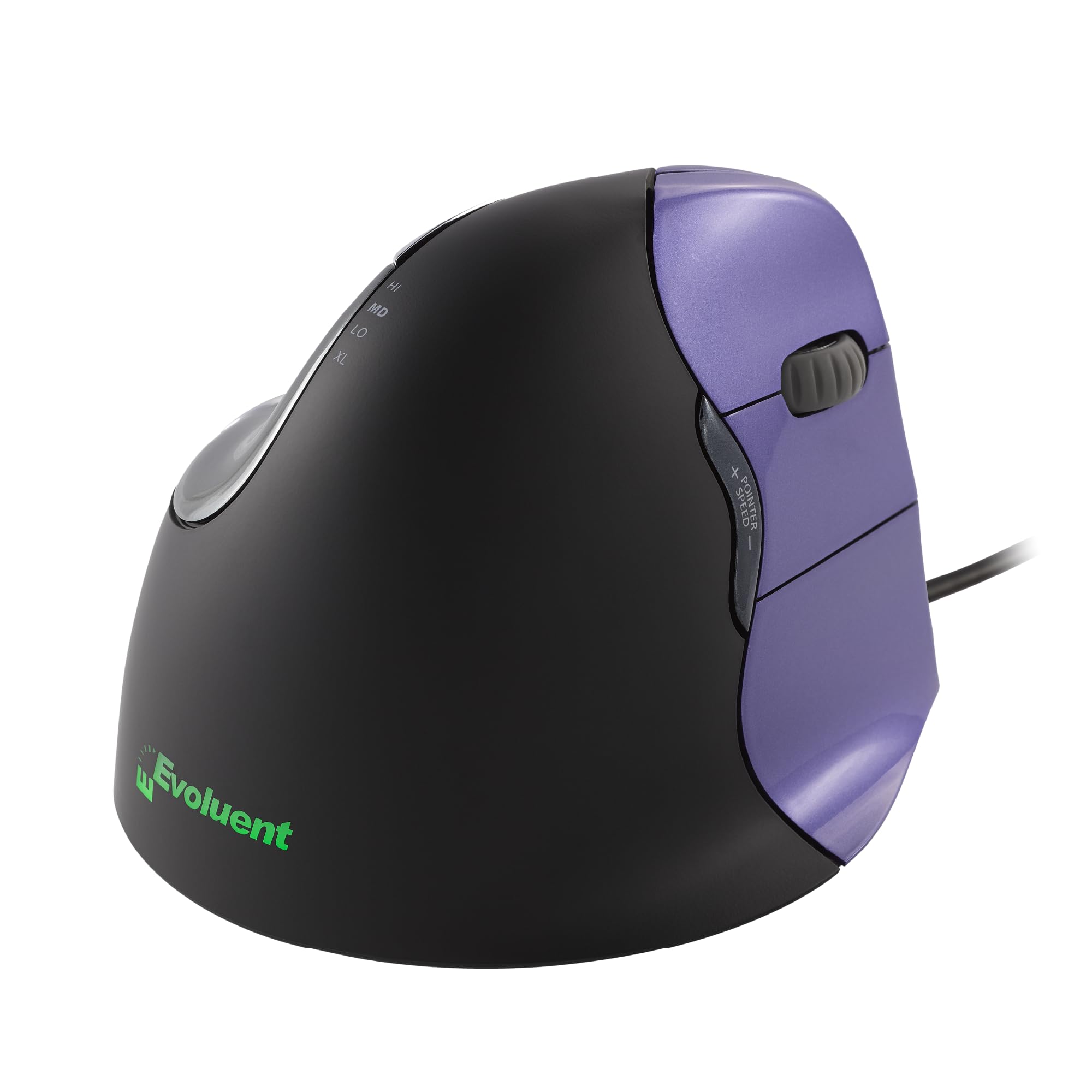
A wired vertical shell from the company that got there first, sized for small hands.
The VM4S is what vertical mice looked like back when the category was starting, and it still does a very clean job. It holds your hand in an upright neutral position, adds a broad bottom lip to support the relaxed hand, and puts the pointer-speed controls on the side so you can change tracking speed without letting go of the grip. That side control does two things at once: it keeps the thumb and fingers doing less work, and it means less hand shifting during the day. You get 6 programmable buttons (buttons you can assign your own shortcuts to) and Evoluent’s Maus Manager software for per-app assignments.
Owners describe it as a mouse that fits small frames well and lets you use a slightly gentler, more neutral arm position — and 950+ verified reviews is the deepest feedback pool of anything reviewed here. Its 4-speed adjustment is controlled from the side of the shell, which is a cleaner system than pawing at a DPI button under the mouse. The wired USB connection is a plus for some, since it removes charging, pairing, and latency questions entirely — but a minus for anyone who wants a clean cable-free desk.
The most common practical limit is sizing, and Evoluent’s small version is still generously proportioned. Some buyers report that even this small model feels big in a genuinely small hand, and the bottom thumb button sits at an angle that can feel awkward to press. It’s worth checking the fit before you commit, but this is also the mouse here with the longest running track record. If you have an older desktop with USB and want the most established shape, this is the one to start from.
What sold me: direct side-mounted pointer-speed buttons that let you shift the cursor on the fly — a design touch the smooth-scroll-only Perixx does not offer.
Your pick if: you want a wired, no-nonsense vertical shell with speed control on the side and the deepest customer history of any mouse here.
Think again when: your hand is genuinely small — the VM4S runs large, and the bottom thumb button’s angle takes getting used to.
7. Razer Pro Click V2 Vertical Wireless Mouse

A handshake shell built for one desk, five devices, and a six-month gap between charges.
The core idea here is a natural handshake grip, with base support that lifts your wrist and cuts friction while moving. That’s the same design intent as the other vertical shells on this list, but the Razer adds a few features the budget and mid-range picks don’t. You can run up to 5 devices across 2.4GHz HyperSpeed Wireless and Bluetooth, plus a wired mode for backup. Battery life is rated at 6 months under standard test conditions, and a 5-minute charge gets you 3 working days — a fast-top-up capability the wired Evoluent VM4S simply doesn’t need, and the rechargeable Perixx doesn’t advertise.
There’s also a genuinely unusual add-on: 18-zone RGB underglow (colored lighting zones under the mouse) with customizable colors and reactive notification plugins. And while you don’t see this control on most vertical mice, you get an AI Prompt Master button that triggers shortcuts through Razer Synapse 4 (Razer’s software) to summarize text and draft emails. If you’re a heavy user who runs a multi-device desk setup, that combination — one button for device switching plus one for AI shortcuts — is the answer to “I want the work off my thumb while I bounce between my PC and laptop.”
Where this one demands patience is the shape itself: with 101 verified mentions marking the ergonomics as mixed, some buyers take to it immediately while others find the vertical angle awkward to get used to. The 0.41 kg weight reads heavy in hand, and while that heft makes it feel planted, it’s a real contrast with the 125 g Logitech Lift. The Focus Pro 30K sensor tracks on glass without a mat, and the mechanical switches are rated for a 60 million click lifecycle, so the hardware side is built to take years of use. Just budget a week or two to adapt to the angle.
Make or break for your desk: the Focus Pro 30K optical sensor tracks on glass and the switches are rated for 60 million clicks, so performance and build won’t be the limiting factor — the angle will be.
For the multi-device desk: five connections, a six-month battery, glass tracking, and a 5-minute top-up for three days of work.
Look on if: you want a lighter mouse in hand — at 0.41 kg it’s noticeably heavier than the featherweight Logitech Lift.
8. Contour Unimouse Ergonomic Vertical Mouse

The thumb rest moves in every direction — this mouse is adjusted, not just used.
Every other vertical shell here sets one angle and expects your hand to meet it. This one is built around the opposite idea. A friction hinge (a joint that holds wherever you set it) sets the tilt anywhere from 35° to 70°, so you can pick a shallower angle in the morning and roll it steeper when your forearm tightens in the afternoon. The thumb support is fully adjustable too — up and down, in and out, forward and back, plus it rotates — and Contour specifically pitches it at reducing pressure on the base of the thumb, which is the exact joint most thumb-pain buyers are trying to protect.
It runs on a rechargeable battery rated for up to 12 weeks per charge — a real stretch compared to the DELUX Seeker’s two-week rating — and it connects through a cordless USB plug-and-play receiver (a small USB stick that pairs it instantly) to Windows and macOS. Six programmable buttons and a smooth scroll wheel round out the layout, and the plastic parts are made with post-consumer recycled material. It’s sold as right-hand only.
Two quirks are worth knowing before you commit. The hinge has enough movement to squeak faintly when it slides, and one buyer described a low buzzing in motion that they found distracting — most owners barely notice it, but if you’re sensitive to high-pitched sound it’s worth flagging. Also, unlike the Razer or the DELUX, it has no multi-device pairing, so it’s a one-computer mouse. For anyone whose thumb pain changes day to day, this is the one mouse here that can follow you.
The design bet: a 35°–70° hinge plus full thumb-support adjustment means you get to hunt down your own comfortable position rather than living with a fixed one.
Right for you if: your thumb pain varies day to day and you want to shift the angle to match, with 12 weeks of battery and full thumb-pad movement.
Not the one if: you bounce between multiple computers — this connects to one at a time and has no multi-device switching.
9. Logitech MX Ergo S Advanced Wireless Trackball Mouse

A 20-degree tilt trackball where your thumb rolls the cursor and your arm never moves.
This is the top of the trackball ladder, and it’s aimed at the buyer whose wrist has already been complaining for months. Your thumb rolls the ball to move the cursor, so your hand and forearm stay planted, and the 20-degree tilt angle lifts the wrist into better forearm posture. Against a plain flat mouse, that tilt is the physical adjustment that tends to match the biggest change in how your wrist feels by the end of the day. In speed or precision mode you can switch tracking at the tap of a button, and it’s rated for medium-to-large hands.
The battery behavior is what separates it from the other trackball on this list, the Nulea M506. Both hand the cursor job to your thumb, but a full charge here lasts up to 120 days, and just 1 minute of USB-C charging buys up to 24 hours of work — a rapid-top-up system the Nulea’s 21-day cycle doesn’t match. It has 8 buttons versus the Nulea’s 6, all customizable through the Logi Options+ app (Logitech’s software), plus dual wireless connection over Bluetooth or the included Logi Bolt USB receiver.
The honest caveat is reliability, which the review consensus marks as mixed alongside value for money. Some owners mention occasional cursor freezes over Bluetooth, and the Bolt receiver is choosy about which USB port it likes — USB-A 2.0 motherboard ports are the happy path, while newer laptops sometimes refuse to pair it. The click mechanism is 80% quieter than the outgoing model, which is a genuine office-friendly upgrade. For anyone who has stuck with trackballs for years, this is the one to graduate to — just test your USB port first.
The case for upgrading: 120 days per charge, 24 hours from a 1-minute top-up, and 8 customizable buttons — a meaningful step past the Nulea M506’s 6 buttons and 21-day cycle.
Best for your desk if: wrist pain is your main complaint and you want a premium trackball with months of battery and thumbless wrist movement.
Worth a second look if: you’re on a modern laptop with no USB-A 2.0 port — the Bolt receiver can be picky about where it pairs.
Know the Specs
Tilt Angle and Handshake Position
The tilt angle is how far the mouse rolls your hand onto its side, away from a flat palm-down position. A higher number like the Logitech Lift’s 57 degrees or the Razer’s handshake shape rotates your forearm toward neutral, which is where the thumb stops clamping the shell to hold it steady. Too high an angle and the hand feels over-rotated; too low and you’re back to the flat-mouse squeeze. Fixed shells like the DELUX Seeker stay at one angle, while the Contour Unimouse’s 35°–70° hinge lets you shift the number mid-day. If you’ve never used a vertical mouse, expect a two-week adjustment at any angle.
DPI and Pointer Control
DPI (dots per inch) is how far the cursor travels for each inch you move the mouse, and it’s the setting most people never touch. Higher DPI means faster traversal with less arm movement, which matters if you’re dragging a fixed mouse across the desk all day. A thumb trackball changes the equation: because the ball rolls, less arm travel is required at any DPI setting, so 1600 is often plenty for a multi-monitor setup. Buying tip: match the DPI range to your monitor count, not the top number. If the mouse only lists two DPI values, make sure one of them sits in your comfortable range before you commit. And check the vendor’s note on which OS supports DPI changes when you’re on Mac.
Common Questions
Will a vertical mouse stop my thumb pain entirely?
Is a trackball or a vertical mouse better for thumb pain?
How long does it take to get used to a vertical mouse?
Will these mice work with a Mac?
Should I look for adjustable tilt on an ergonomic mouse?
How long do the batteries in these mice actually last?
Will these mice fit my hand size?
Do I need extra software to remap buttons?
Can a trackball help with forearm and shoulder pain too?
Do these mice need a mouse pad?
The Bottom Line
For most people reading this, the best ergonomic mice for thumb pain depends on if you want your thumb to hold a grip or roll a ball. The Nulea M506 wins the overall spot because its 54° vertical shell lets your thumb roll the cursor while your arm stays planted, and at 4.5+ stars across 200+ owners it holds the strongest combination of shape and feedback on this list. If you’d rather keep a traditional vertical grip and want on-mouse button customization without any software, the Ergodriven Om is the sharper pick — 9 buttons and an onboard OLED screen, no drivers required. And if your thumb pain sits alongside wrist and forearm strain, the Logitech MX Ergo S is the premium trackball that keeps your whole arm still for months on a single charge. Whichever you choose, give the new shape a full week — every one of these is a real change to how your hand works, and the relief usually arrives after the awkward first week, not during it.
How we choose
We do not accept paid placement. Every pick is matched to a real buyer and a real use-case; we do not hands-on test units.
Sources
Specifications: manufacturer listings and product documentation. Review insights: verified customer reviews, as of October 2026. Pricing: not shown on this page (it changes often); check the current price via the retailer link.
As an Amazon Associate, Home Digitized earns from qualifying purchases. This does not affect which products we feature.